This section is under active development! If something is missing that you think should be present, please get in touch - your input and feedback are very welcomed!
This section is the home for judging and scoring resources for BIS competitions.
Here you can find the custom scoring setups, verification sheets, checksums and Scales of Value for competitions held by BIS, and information for running competitions using these configurations.
This section is split into the following sub-sections:
ISU regulations are observed at international, ISU organised events. However, these rules are often adapted by individual nations or skating bodies to suit their purposes.
Under BIS, each season, the Technical Advisory Committees for the various skating disciplines will agree on scoring parameters and elements for their discipline, which must then be entered into the digital scoring system prior to competitions.
With the more recent releases of FS Manager, it is possible to append these elements to the ISU standard elements in such a manner that they do not alter the checksum generated by the program when validating elements. This is discussed on the Custom Scoring Setups page.
ISU Checksum Values
To enable an easy method for judges to verify that all standard elements are present in the scoring system at time of competition, FS Manager generates a checksum based on the elements loaded into the system. These checksums are then published by the ISU for judges to verify against.
To view the current ISU verification checksums, please click here.
Information for Officials
This section contains information designed to elucidate some of the finer points of the FS Manager scoring system, aimed primarily at officials who need to interact with its output.
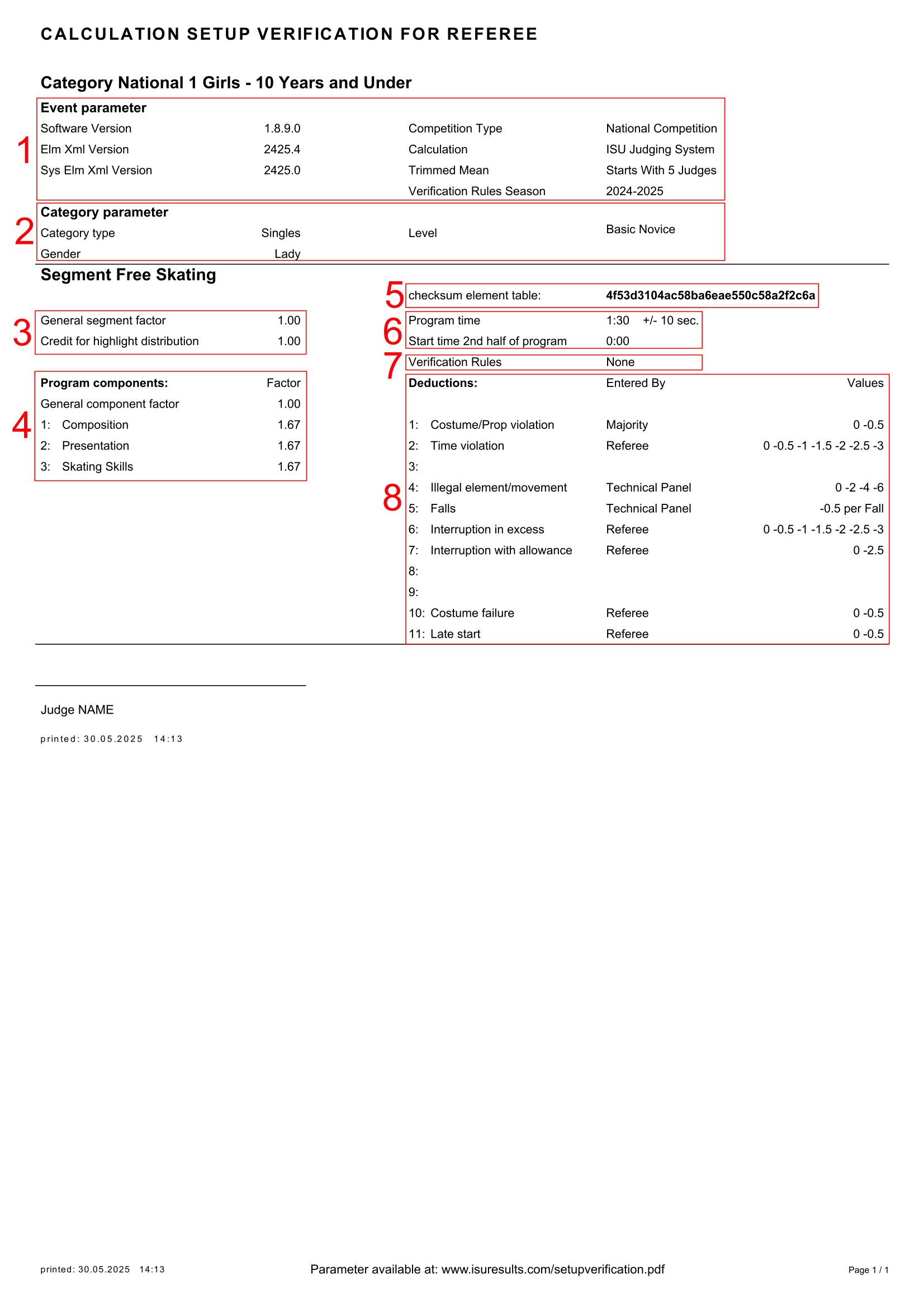
These parameters configure the event overall and should remain consistent between categories:
Software version: records the version of FS Manager used to generate the competition database. Should be the most recent version, barring extenuating circumstances e.g., updates released mid-competition.
Elm Xml and Sys Elm Xml version: records the version of the file containing the elements and their associated Scale of Values imported into the scoring database. The current version numbers are documented at www.isuresults.com/setupverification.pdf.
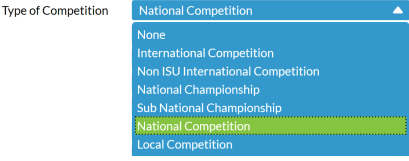
Competition Type: Defines the type of competition from the options shown in Figure 2. The International Competition option enforces the use of ISU regulations, whilst all other options allow the definition of custom scoring parameters.
Figure 2: Dropdown list in FS Manager showing options for competition types.
Trimmed Mean: Defines the number of judges from which the trimmed mean final score is calculated. Options are None, 5, 6 or 7.
Verification Rules Season: Defines the season of the verification rules applied to the competition.
2: Category parameters
Category Type: Defines the category type e.g., Singles, Ice Dance etc.
Gender: Defines the gender of the competitors, with options as Man, Lady or Mixed.
Level: Defines the level of the competition, e.g., Senior, Junior, Advanced Novice, etc. If this option reads “Custom”, the competition can implement custom-configured verification rules. This option may also read custom if verification is disabled, but non-standard factors are implemented for the segment that have been defined in a custom setup file.
Segment parameters
3: General factors
General segment factor: This factor is used to multiply the final score of the entire segment. This is typically 1.00, but is set to lower values for novice level pattern dances.
Credit for highlight distribution: This factor is used to multiply qualifying element scores in the second half of the program (i.e., jumps at Junior and Senior levels). The time after which this factor is applied is defined in Section 6.
4: Component factors
This section configures the component factors of the program. Each component can have an independently defined factor, though in practice this is rarely, if ever, the case.
General component factor: this is a flat value by which all component factors are multiplied. Should be left at 1.00 without explicit justification, given that component values can be individually configured.
5: Element checksum
The element checksum is a checksum value generated from the contents of the element file loaded into FS Manager. This value should match the value for the corresponding suite of elements published at the URL listed at the bottom of the Calculation Setup Sheet (www.isuresults.com/setupverification.pdf).
Info
It is possible to introduce custom elements into the element list of FS Manager without altering the checksum, provided that these custom elements do not modify the base elements. The procedure for doing so is discussed here.
6: Time settings
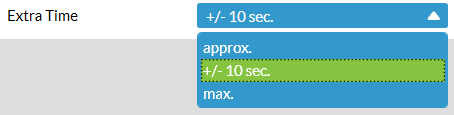
Program time: defines the length of the program for the segment, and the margin of error allowable. The options for the margin are +/- 10 sec., max. and approx., and cannot be further configured (Fig. 3).
Figure 3: Dropdown list in FS Manager showing options for extra time.
Start time 2nd half of program: defines the middle point of the program for performances where bonus credit is given for elements performed after the halfway point. If 0:00 is shown, no bonus is awarded for elements in the second half of the program.
Note
The program time setting will only determine the time warnings shown on the results team’s screen. Any time violation deductions must be imposed manually by the referee.
7: Verification rules
This setting defines the verification rules that are used to check elements against during the performance. The options for this setting are ISU Rules, None or Custom.
ISU rules will use the chosen season’s verification rules for the chosen level as defined by Swiss Timing. These rules are therefore only directly applicable to internationally recognised category levels.
None will allow all elements corresponding to the current segment type as valid, but will also enable manual placement of asterisks to invalidate elements by the Data Relay Operator.
Custom will load custom defined verification rules created by the results team.
Note
Regardless of the setting defined in this section, it is possible for the results team to override the determination of the validity generated by the results software at the instruction of the referee and technical controller.
8: Deductions
This section defines the deductions applicable to the segment and their corresponding values.
Scale of Values
Defining values
The values for all elements are defined by the scale of values for the discipline, and this scale is represented within FS Manager as an XML file. Each release of FS Manager is shipped with an up-to-date version of the ISU scale of values.
Custom elements
Federated nations often define custom elements for lower level or otherwise non-ISU competitions. These can be loaded into FS Manager non-destructively as discussed on the Custom Elements page. Loading elements in this manner will not change the verification checksums discussed on the General Information page.
For more detailed information about how to create custom elements, or to download the current season’s BIS custom elements, see the page on Custom Elements.
Scales of Value
The following scales of value are available to download from this site:
The following file has been prepared with care and attention, but it is not officially supported and any event organisers who choose to use it do so at their own risk. BIS will accept no responsiblity for scoring errors resulting from the use of this file. This file is provided as is, with no warranty, stated or implied.
Click here to download the XML file for use with FS Manager.
The following file has been prepared with care and attention, but it is not officially supported and any event organisers who choose to use it do so at their own risk. BIS will accept no responsiblity for scoring errors resulting from the use of this file. This file is provided as is, with no warranty, stated or implied.
Click here to download the XML file for use with FS Manager.
Info for Results Teams
There are a large number of options and variables available to federation results teams to customise the FS Manager experience to accommodate the needs of national or sub-national bodies. Whilst the official documentation should always be the first source, some additional information is collated here in the hope that it will be useful.
FS Manager is designed with hosting ISU competitions in mind, and thus only includes ISU standard scoring parameters and verification rules. However, it is possible to customise both of these through the configuration of XML files.
Custom Scoring Setups
Custom scoring parameters (i.e., factors and deduction multipliers) can be programmed into FS Manager and recalled for any competition that is not set as an “International Competition”. The general configuration can be seen below.
Example scoring setup
<Setupsxmlns="http://tempuri.org/SetupDefinition.xsd"xmlns:xsi="http://www.w3.org/2001/XMLSchema-instance"Title="BIS Custom Scoring"Version="1.1.0"xsi:schemaLocation="http://tempuri.org/SetupDefinition.xsd SetupDefinition.xsd"><YearValue="2425"><CustomDifficulties><CustomDifficulty><!-- Defines category name --><Name>Beginner</Name><ShortName>B</ShortName><!-- Defines code used in ODF messages and when generating documents. Must be unique. --><RscCode>NATBEG</RscCode><!-- Determines sort order in FS Manager. Must be unique. --><MapIndex>a</MapIndex><CalculateFallDeduction>true</CalculateFallDeduction></CustomDifficulty></CustomDifficulties><Competition><!-- Determines the nature of the category and the difficulty it is associated with. --><CategoryType="Men"Difficulty="Custom"CustomDifficulty="Beginner"><Name>Beginner Boys</Name><SegmentType="Free"><!-- This determines the name of the segment when it is created. For custom scoring, this cannot be overwritten. --><Name>Free Skating</Name><ShortName>FS</ShortName><AdditionalTime>Add10Sec</AdditionalTime><CreditForHighlight>1</CreditForHighlight><GeneralComponentFactor>1</GeneralComponentFactor><GeneralSegmentFactor>1</GeneralSegmentFactor><Priority>ProgramComponentScoreDecides</Priority><PerformanceTime>PT1M30S</PerformanceTime><StartSecondHalf>PT0S</StartSecondHalf><WarmupGroup>PT2M30S</WarmupGroup><ComponentFactors><!-- A component factor block is necessary for each factor, but is ommitted here for brevity. --><ComponentFactor><Factor>1.67</Factor><MapIndex>0</MapIndex><Name>Composition</Name><ShortName>CO</ShortName><Type>0</Type></ComponentFactor><!-- Other factors defined in this space... --></ComponentFactors><DeductionFactors><!-- As with components, a DeductionFactor node is needed to define each deduction. --><DeductionFactor><Factor>0.5</Factor><IsMajorityDeduction>false</IsMajorityDeduction><MapIndex>4</MapIndex><Name>Falls</Name><Responsible>TechnicalPanel</Responsible><Type>10</Type><Value>-0.5 per Fall</Value></DeductionFactor><!-- Other deductions defined in this space... --></DeductionFactors><!-- VerificationRule determines whether to use ISU rules for redefined stock categories, whether to disable verification or to search for custom verification. --><VerificationRule>None</VerificationRule></Segment></Category></Competition></Year></Setups>
Download custom scoring setup
The following file is considered to be in an alpha state, and any event organisers who choose to use it do so at their own risk! This file is provided with no warranty, stated or implied.
To download the scoring setups used at BIS events, click here.
Custom verification rules
Custom verification rules allow custom elements to be considered valid or invalid by FS Manager, and for custom program content requirements to be automatically assigned valid or invalid by the computer. However, documentation for this process is very scarce, and, as such, no advice is provided here for the majority of the functionality possible with these files.
An additional application of the custom verification is to enable custom pattern dances to be automatically loaded into a properly configured FS Score system, and validated by FS Manager. An example of this follows below.
Example pattern dance verifications
<?xml version="1.0" encoding="utf-8"?><!-- Here we can denote version and name to be displayed within FS Manager --><Validationsxmlns:xsi="http://www.w3.org/2001/XMLSchema-instance"xsi:schemaLocation="http://tempuri.org/RuleDefinition.xsd RuleDefinition.xsd"Title="BIS Solo Dance"Version="1.0.0"xmlns="http://tempuri.org/RuleDefinition.xsd"><YearValue="2425"><!-- This is where more complex verification rules would live --></Year><PatternDances><!-- Define the dance name within FS Manager and whether it has keypoints or not --><DanceName="Golden Skaters Waltz"KeyPoints="No"Type="1"Id="1"><Or><!-- The sequences and sections of the dance are defined here. Keypoints should not be included here. --><Case>GSW1Sq</Case><Case>GSW2Sq</Case></Or></Dance><DanceName="Riverside Rhumba"KeyPoints="No"Type="2"Id="3"><Or><Case>RR1Sq</Case><Case>RR2Sq</Case></Or></Dance><DanceName="Novice Foxtrot"KeyPoints="No"Type="4"Id="9"><Or><Case>NFN1Sq</Case><Case>NFN2Sq</Case></Or></Dance></PatternDances></Validations>
Download pattern dance validation
The following file has been used successfully at previous events, but any event organisers who choose to use it do so at their own risk! This file is provided with no warranty, stated or implied.
To download the scoring setups used at BIS events, click here.
Custom Elements
When configuring custom elements, there are two main methods to use: manual entry through the FS Manager GUI, or bulk upload from an XML file. Both are discussed below.
Custom Elements through the FS Manager GUI
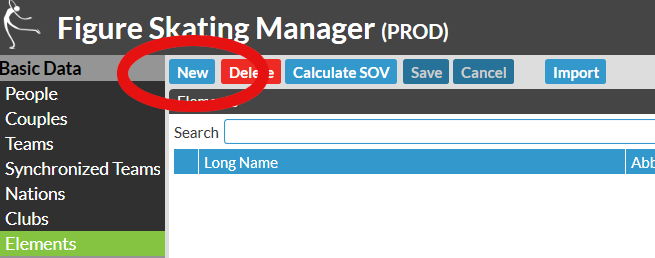
Custom elements can be entered through the Elements tab of FS Manager. To do this, click New (Fig. 1).
Figure 1. New element button within FS Manager.
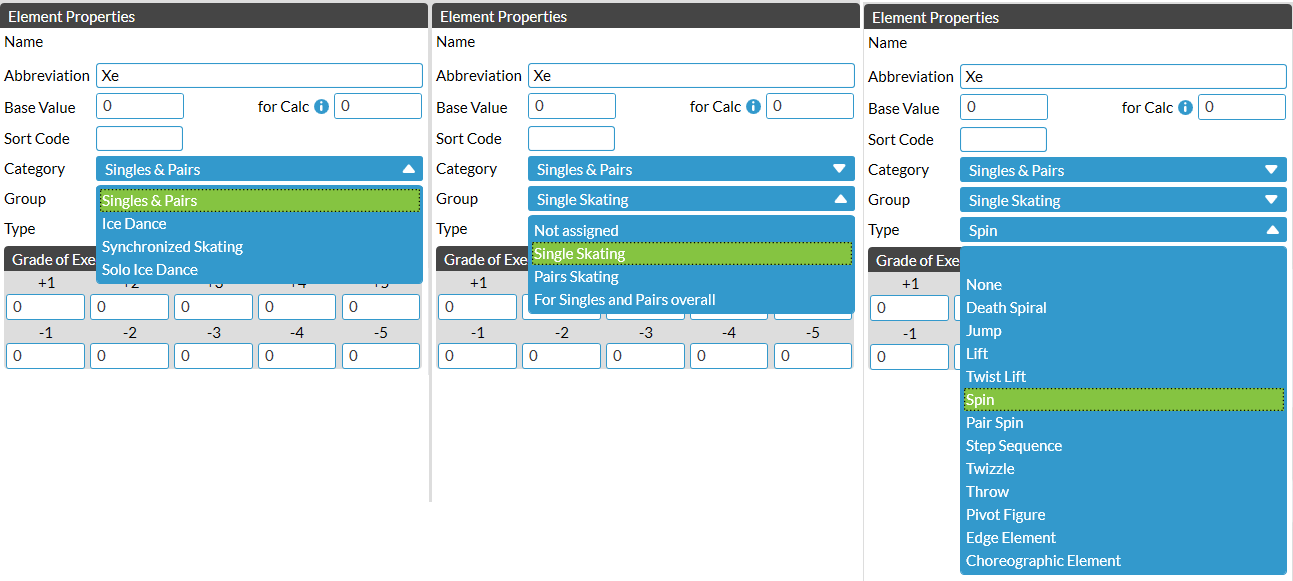
This opens the element entry interface, where you can fill out the details of your elements. For each element, you must select the category, group and type. Only once all three of these are selected will the element be registered as Custom (Fig. 2).
Figure 2. Element configuration interface, with dropdown menus displayed.
Once you have selected all of the categories and entered your element name, click Save (see Fig. 1). It is important that you always have a “No Value” variant of any element you create, unless you have an explicit reason to exclude this.
In the example, we are creating the SOV for the Extremely Cool Spin, the SOV table for which is below:
Extremely Cool Spin
-5
-4
-3
-2
-1
Base
1
2
3
4
5
XeSpB
-0.85
-0.68
-0.51
-0.34
-0.17
1.70
0.17
0.34
0.51
0.68
0.85
XeSp1
-0.95
-0.76
-0.57
-0.38
-0.19
1.90
0.19
0.38
0.57
0.76
0.95
XeSp2
-1.05
-0.84
-0.63
-0.42
-0.21
2.10
0.21
0.42
0.63
0.84
1.05
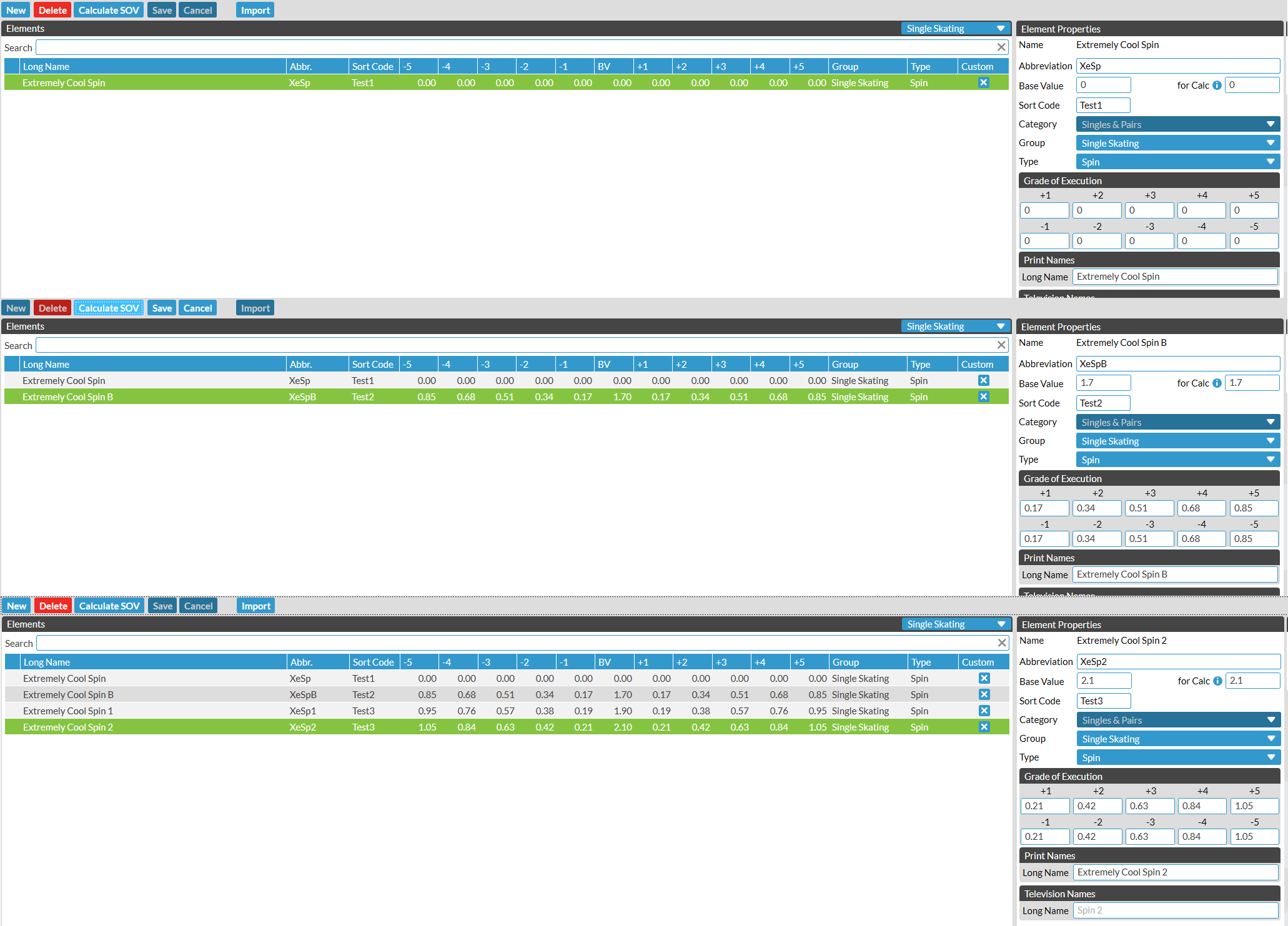
To do this, we first create the No Value variant (XeSp), then XeSpB, XeSp1 and XeSp2. For each element, fill out the Base Value and for Calc (Fig. 3, right hand side). For elements where the grade of execution bonuses increase as the element level increases (as is typical for spins), this will be the same value in each box. After entering the Base Value and for Calc values, click Save, then click Calculate SOV, followed by clicking Save again. This will fill out the SOV boxes according to standard SOV scaling. If your element uses atypical SOV scaling, you must enter each value manually.
Figure 3. Examples of XeSp Scale Of Values entered into FS Manager.
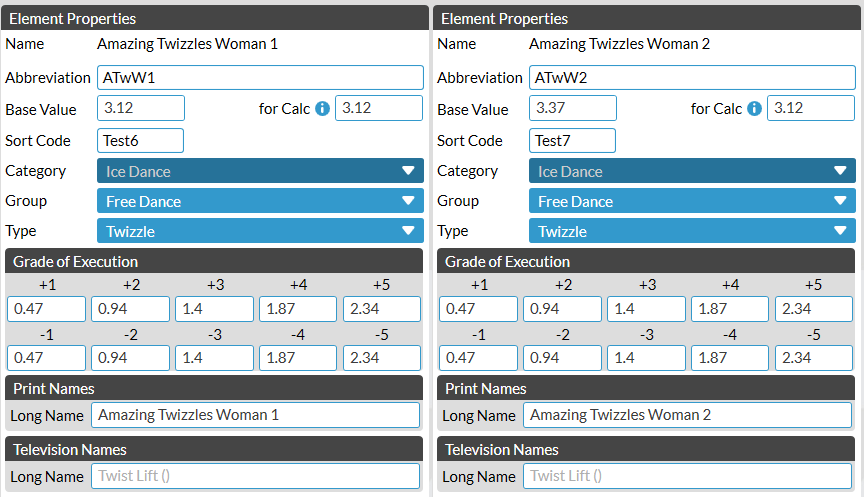
If you are creating an element where SOV bonuses remain constant with changing levels of element (e.g., twizzles in Ice Dance), Base Value represents the base value of the element level (i.e., GOE +0), and for Calc represents the base value that is used to calculate the GOE bonuses (which is commonly equal to the base value of the level 1 version of the element). An example of this is in Figure 4.
Figure 4. Examples of elements with different Base Value and for Calc values. Note that the GOE scales for ATwW1 and ATwW2 are the same as the for Calc value is 3.12 in both cases.
Important notes
Some important points to note:
Once an element’s category is set, it cannot be changed.
Elements will only be valid for the category which they are created. For example, an element created for Rhythm Dance will not be valid in Free Dance. This also applies to pattern dances, where a pattern dance created for Ice Dance will not be valid for Solo Dance.
If the elements are planned to appear on the FS Score judging interface, additional configuration of the interface must be performed separately. This procedure will only affect the validity of the element within FS Manager.
Custom elements can interact strangely with verification rules. Always double check results before they are signed off when using custom elements.
Custom Elements in XML Documents
This section is currently being updated. Check back soon!
For a more portable solution, XML files can be written to define custom elements. These should be loaded after the master elements list that ships with FS Manager is loaded, and will not affect the element checksums unless a custom element redefines an existing element. The below procedure will load custom elements in addition to the stock elements:
Load the stock elements XML into FS Manager. This is found in the MasterData folder of the FS Manager install (default: C:\SwissTiming\OVR\FSManager\MasterData)
Load the custom elements XML into FS Manager by the same method. Once loaded, this should produce a popup showing how many new elements have been added and how many have been modified. Any modifications will affect the element list checksum, while additions do not.
Custom element annotated example
<!-- This element version is ignored for custom elements --><ISUCalcFSelm_version="2425.4"><!-- Custom elements must be enclosed within a Custom_Element_List node, or they will delete the standard elements from the database --><Custom_Element_List><!-- ELM_ID must be unique --><!-- ELM_NAME defines the long name printed in FS Manager --><!-- ELM_SNAME defines the element code that is used to assign a value to the element --><!-- ELM_SNAMWL defines the element name without a level, applicable to elements like spins (i.e., if ELM_SNAME was SSp4, ELM_SNAMWL would be SSp) --><!-- ELM Group defines the category types which the element can be performed in --><!-- ELM_SORT is an ID that is used to sort the elements in the SOV printout. It should be unique for clarity --><!-- ELM_CALCGR determines the grouping for pattern dances --><!-- ELM_VAL4 determines the element's calculation base value --><!-- ELM_CALCBV determines the calculation base value for GOE calculations (e.g., for Solo Dance edge elements where GOE bonuses are the same for levels 1-4) --><!-- ELM_TYPE determines the element type within FS Manager, though this does not seem to affect the way the element behaves when used in competition --><ElementELM_ID="4000"ELM_NAME="Single Axel (Half Bonus)"ELM_SNAME="1Ah"ELM_SNAMWL="1Ah"ELM_SORT="BISF001"ELM_GROUP="S"ELM_CALCGR=" "ELM_VAL4="1.6"ELM_CALCBV="1.1"ELM_TYPE="Jump"/></Custom_Element_List></ISUCalcFS>
BIS Custom Elements
Custom XML files used by the BIS results team are available in the SOV section.
Information for Skaters
This section contains information to help skaters around competitions. It currently contains the following pages:
There are a large number of elements in figure skating, and each of these is assigned a short code for use in the ISU judging system. When preparing PPC forms, elements should be provided without a level appended to their code, as this level (and any other performance-dependant notation like downgrades) is determined by the technical panel during the competition. The below pages therefore contain tables with the base code of an element and its corresponding name.